Skip to walkthroughs

How BibleBot Works

Brief overviews, short videos, and written steps. Choose a page to get started.

Other page guides

Start with what you want to do

Looking for guided studies? Open Studies to see the drafts available to you.

Passage

Read Scripture first. Study the whole passage, or select a verse for its tools.

Open Passage

Start here

Open, read, and move through Scripture

Choose a passage, read in context, and select a verse for closer study.

Written steps
  1. Open the passage and translation picker. Choose a book and chapter, or type a reference or range, then choose Open passage.
  2. Use the stepper beside Study or at the end of the passage to move to the previous or next verse, chapter, or chronological reading.
  3. Choose Study to explore the loaded passage. Select a verse number to study that verse.
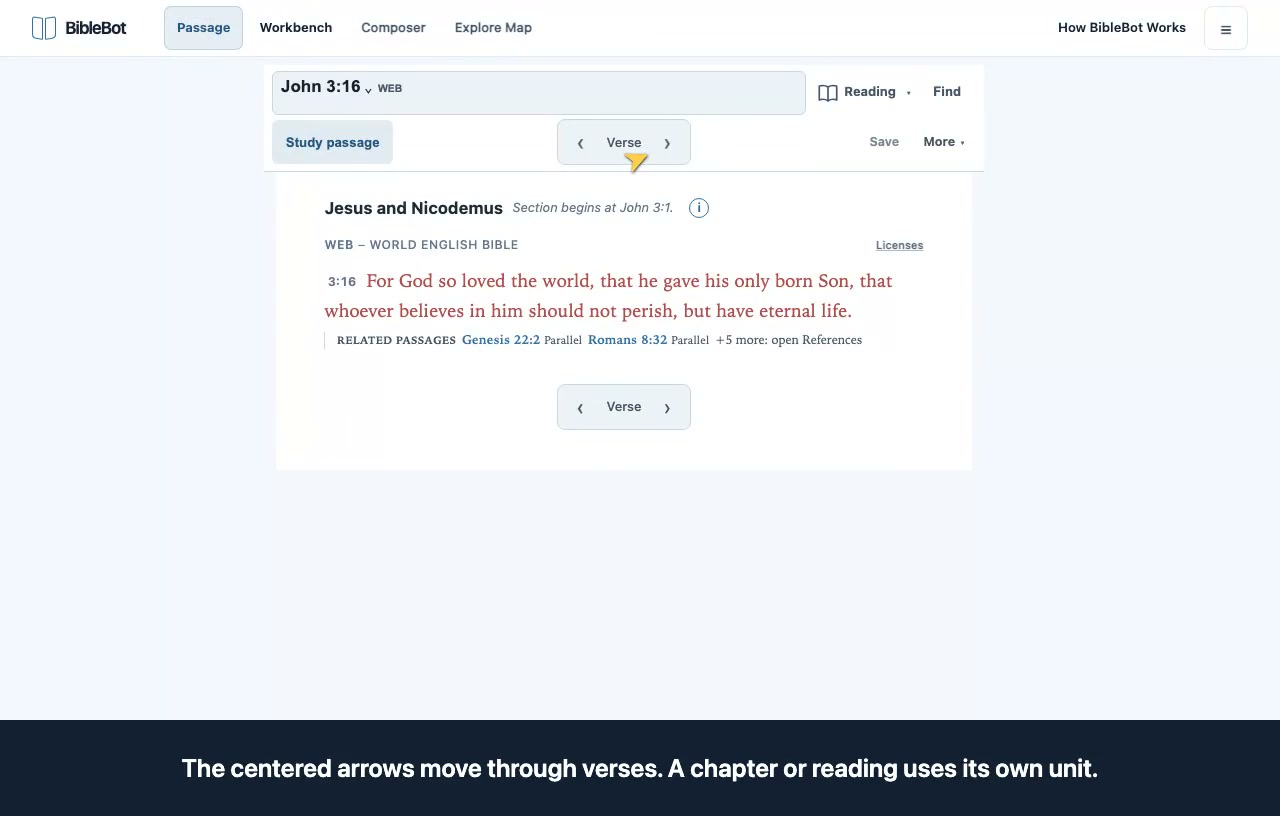
Preview: open, read, and move through scripture

Reading and selection 2 videos

Make the reader work for you

Change the reading view and aids while keeping your passage in view.

Written steps
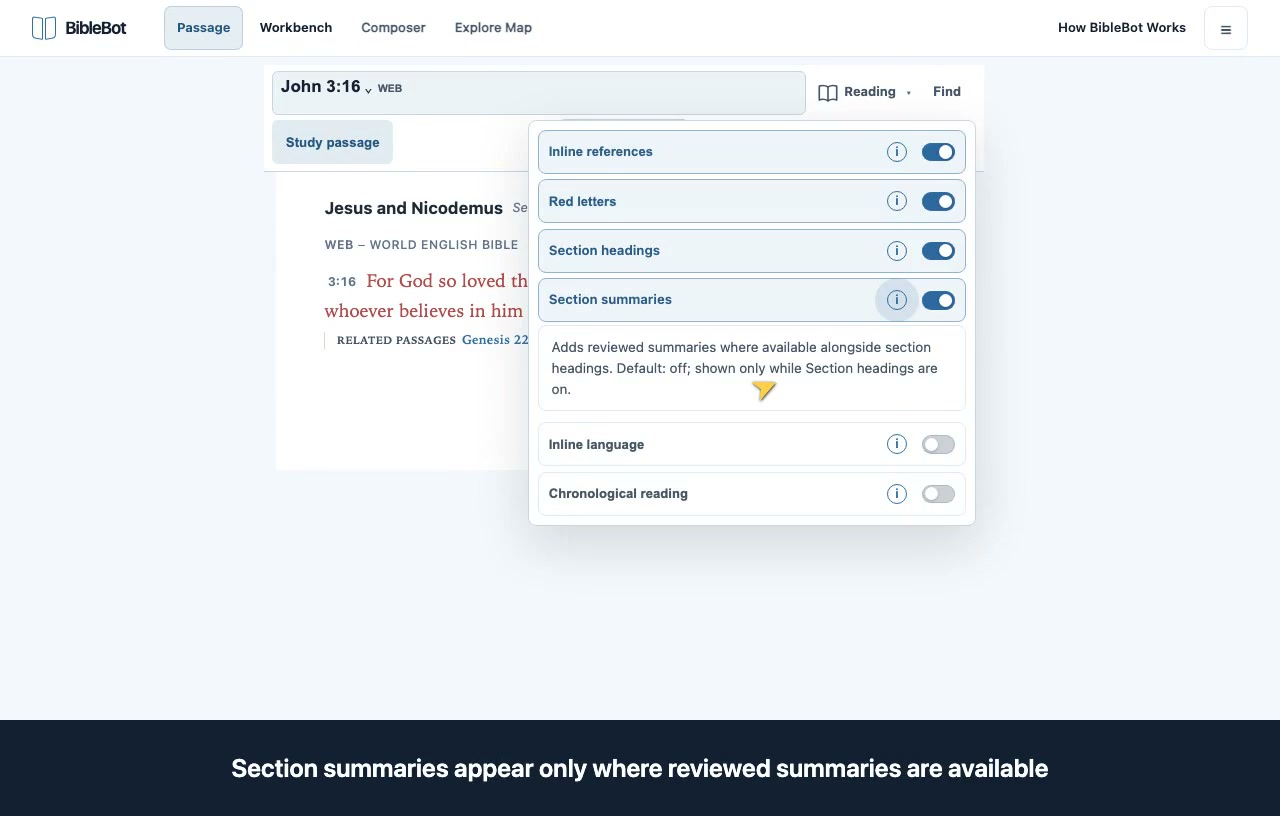
  1. Open Reading to choose the reading aids and display options you need.
  2. Use Find to search Scripture and open a matching passage. Turn headings, references, or inline language on when useful.
  3. Explore a chronological reading from the passage picker, then return to normal passage reading.
Preview: make the reader work for you

Study a passage on your phone

Keep the text readable and open the tool you need.

Written steps
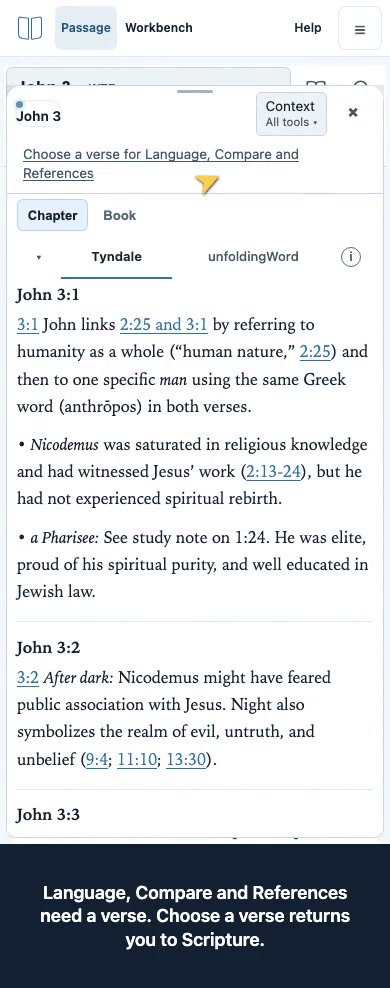
  1. Choose Study for the loaded passage, or select a verse number for verse tools.
  2. Open All tools and choose a tool. The selected tool name stays visible when the chooser closes.
  3. Close the tools to return to reading; the passage and selection remain in place.
Preview: study a passage on your phone

Study tools 5 videos

Read Context and its sources

Read publisher notes with their source identity and passage scope visible.

Written steps
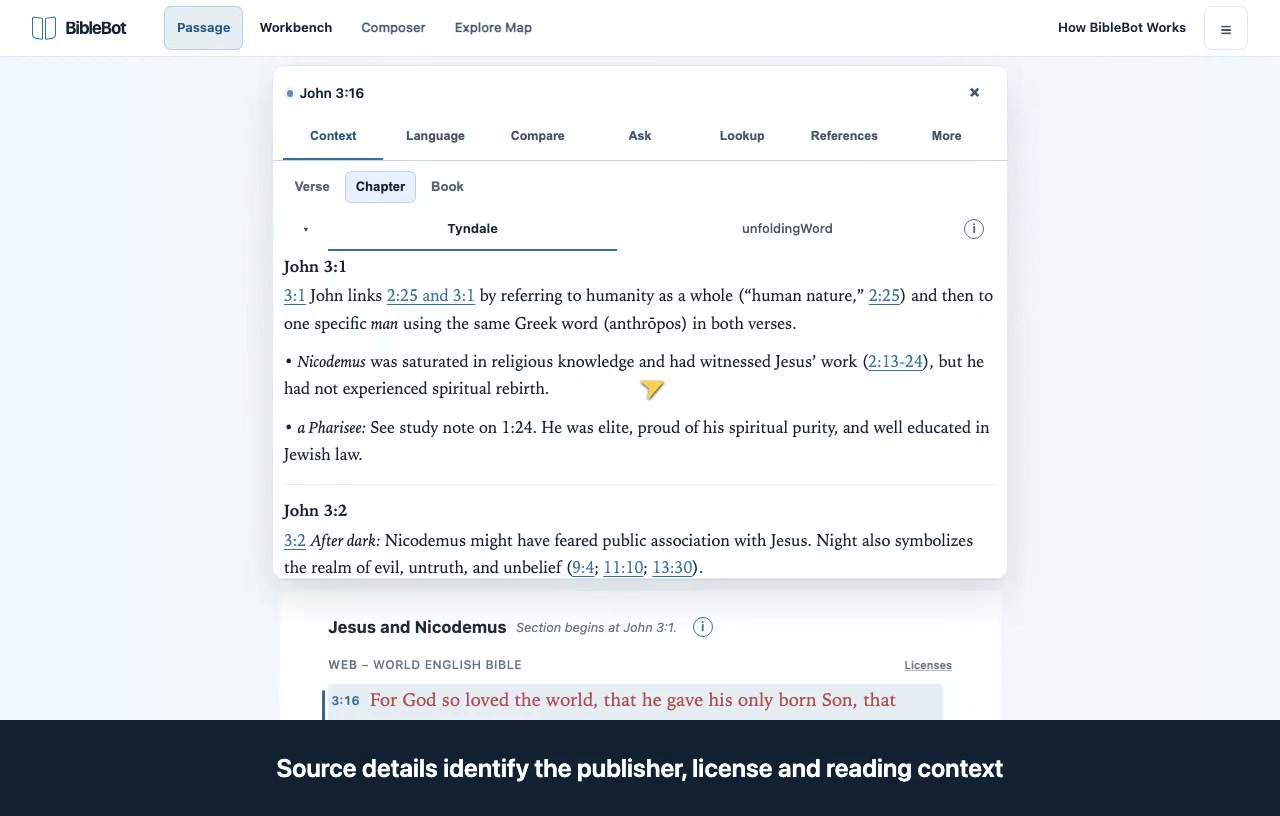
  1. Open Context for your passage or selected verse. Choose Chapter or Book when offered.
  2. Choose an available publisher and read its notes. Open source details for attribution and publication information.
  3. Follow a cited passage or open the related research groups. Missing coverage is shown explicitly.
Preview: read context and its sources

Compare translations and follow references

Compare the same verse across editions, then follow related passages.

Written steps
  1. Select a verse and open Compare. Choose the available translations to compare.
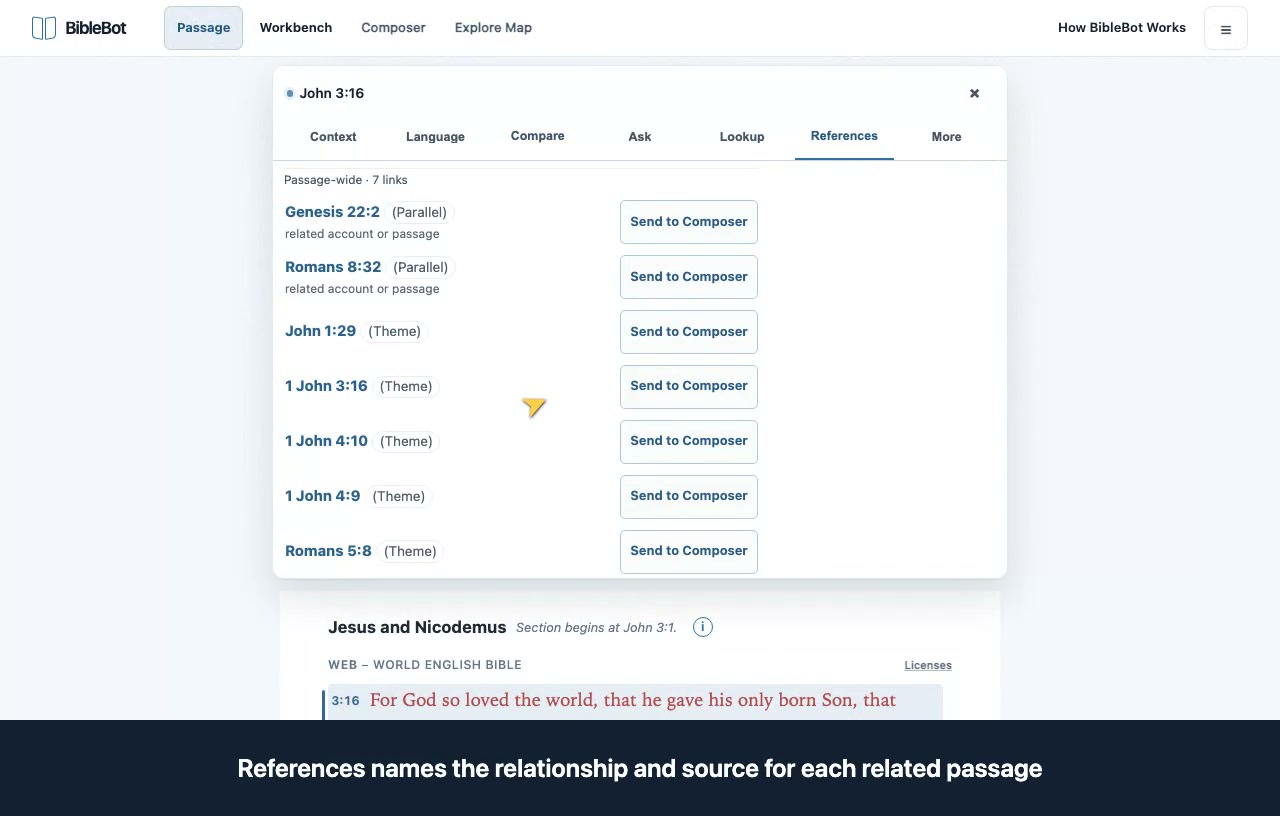
  2. Open References for related passages and use the available filters to narrow the list.
  3. Preview a reference before opening it in Passage, then use the return control to resume your study.
Preview: compare translations and follow references

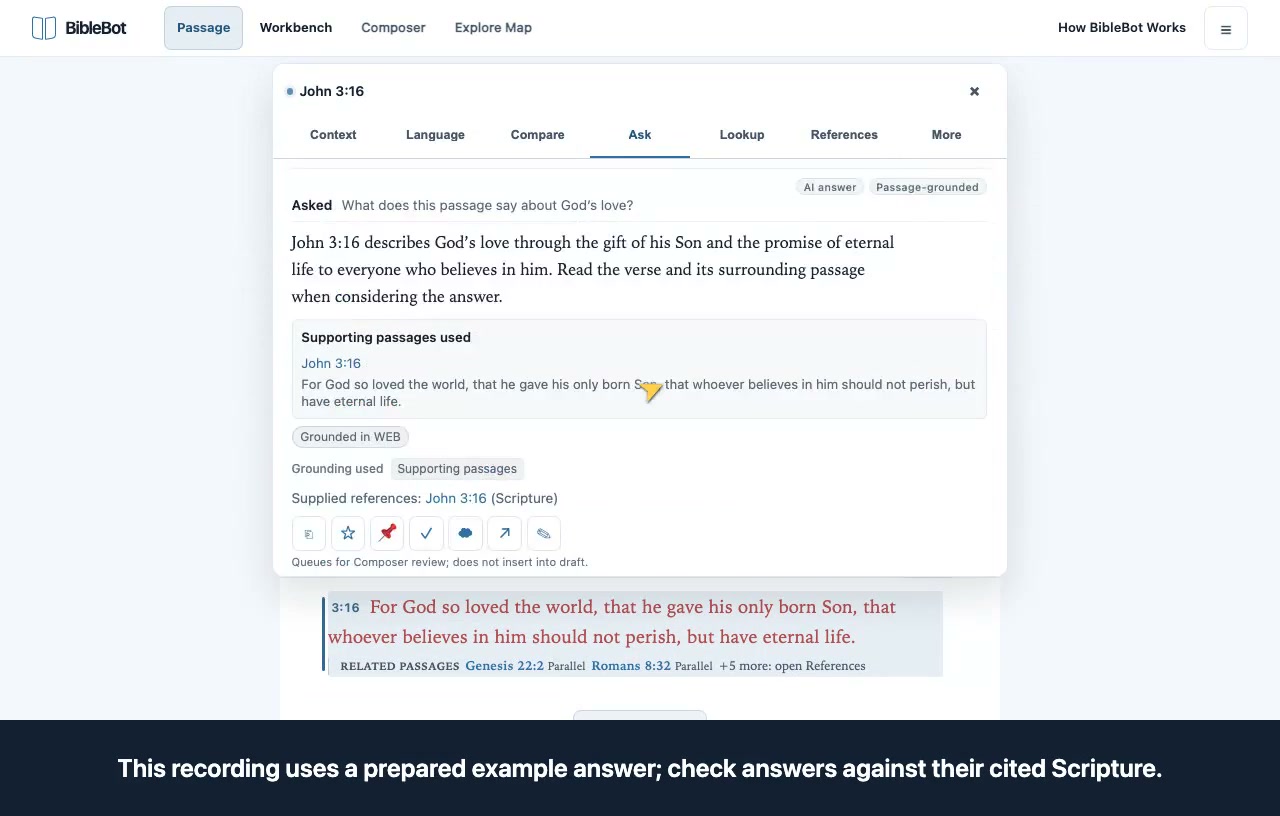
Ask about a passage

Ask with a clear passage scope and inspect the answer’s evidence.

Written steps
  1. Select your passage or verse, then open Ask. Enter your question and submit it.
  2. Read the cited passages and evidence behind the answer. An answer is assistance for study, not a replacement for the sources.
  3. Use the explicit save or Composer actions when you want to keep the answer.
Preview: ask about a passage

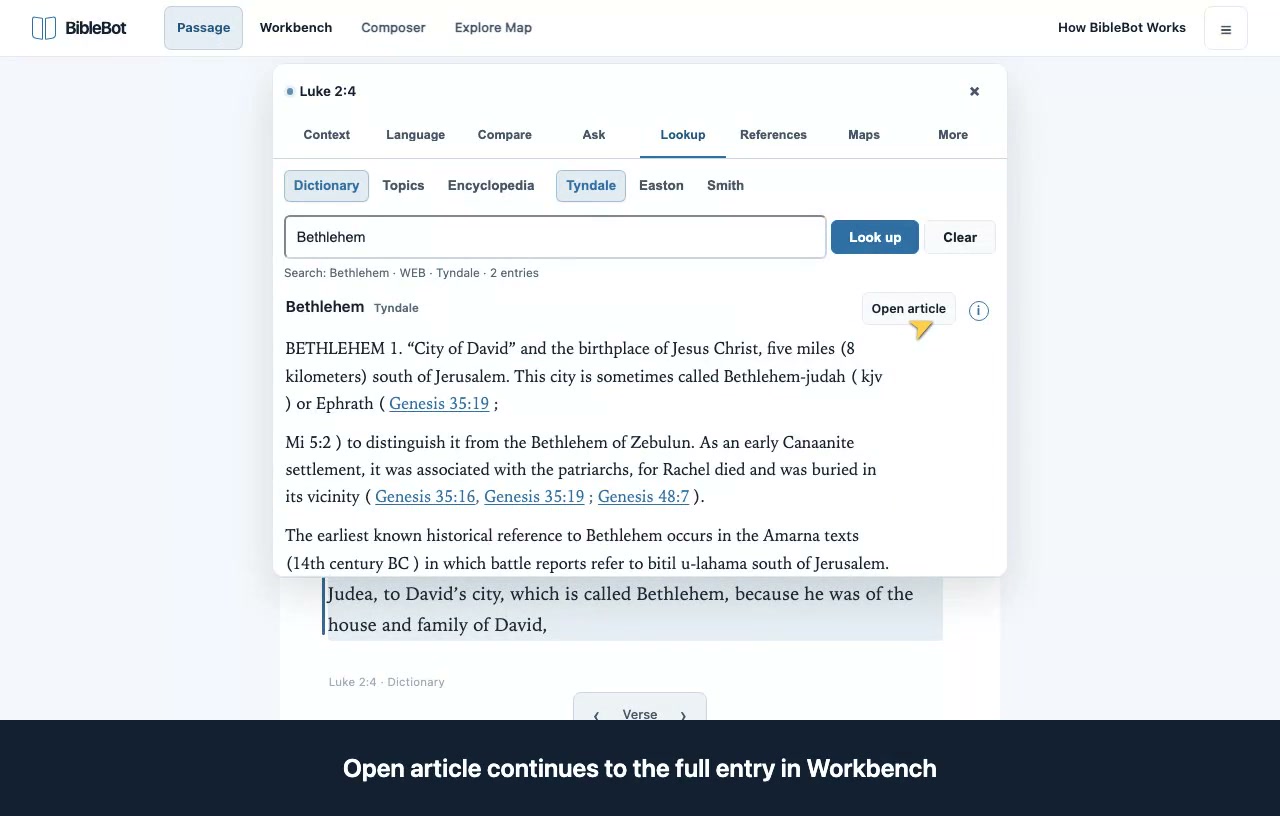
Look up a word or topic

Choose Dictionary, Topics, Encyclopedia, or Word Study.

Written steps
  1. Open Lookup and choose the kind of lookup you need. Enter a word, topic, or Strong number.
  2. Choose an available source and open the result. Read the source label and attribution with the entry.
  3. Follow a cited passage or continue the lookup in Workbench.
Preview: look up a word or topic

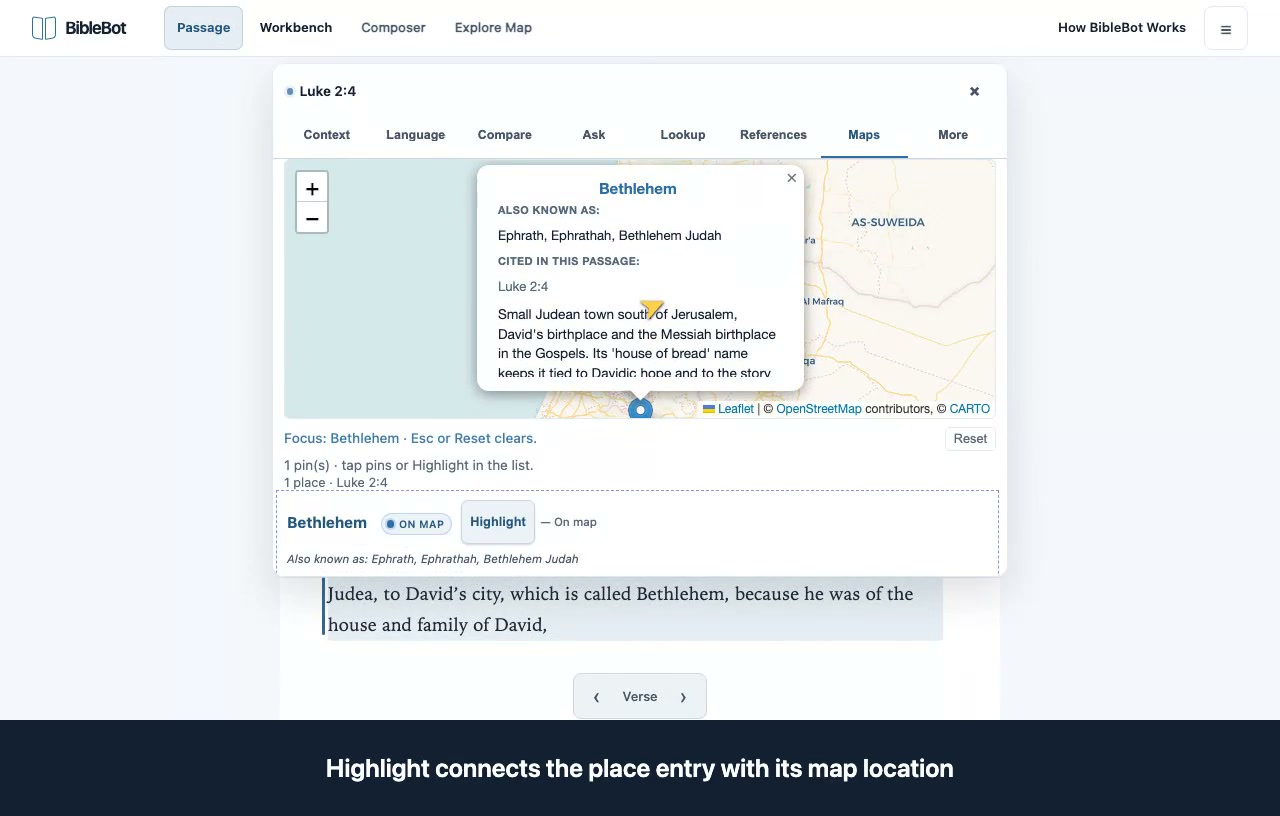
Explore places in a passage

Locate places while keeping precision and source limitations visible.

Written steps
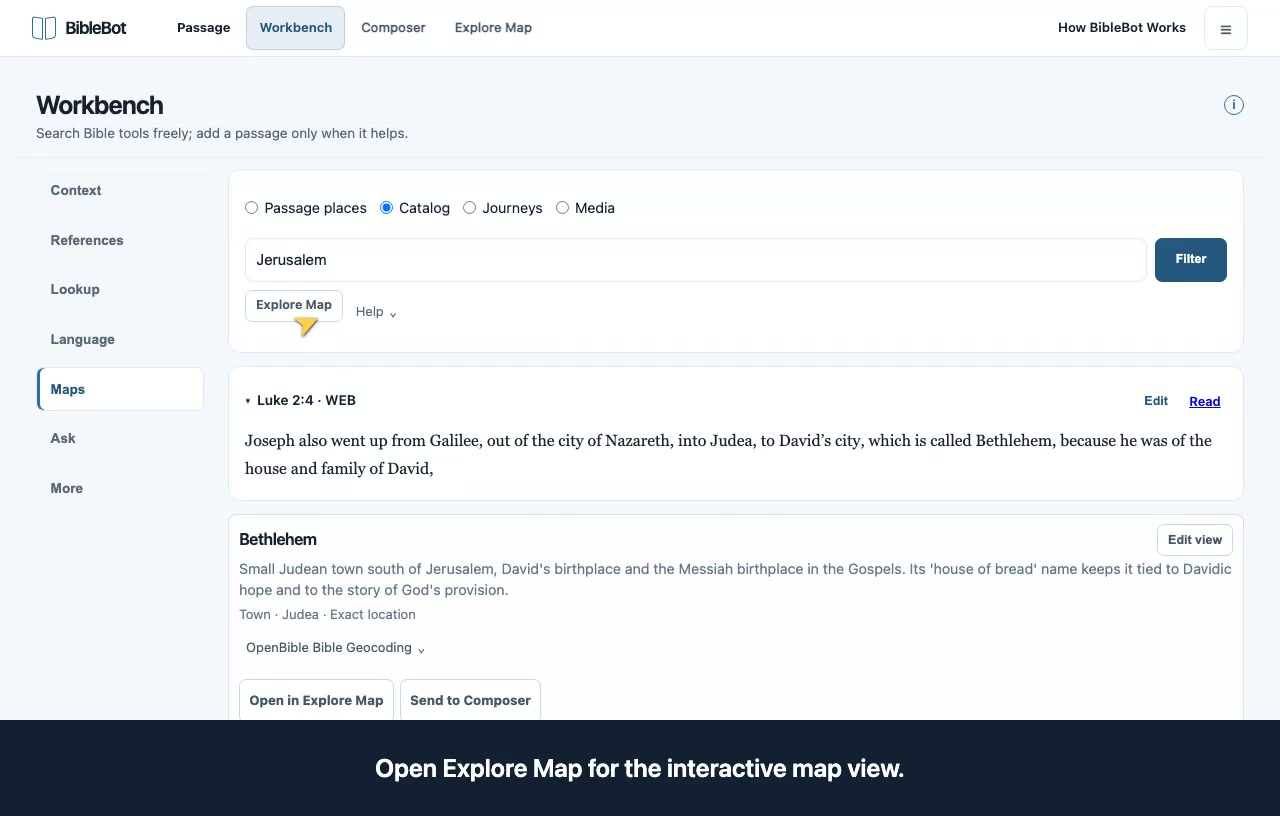
  1. Open Maps for a passage with place coverage. Choose a place to inspect it.
  2. Read the precision and source information before interpreting a marker as an exact location.
  3. Continue in Explore Map to browse the wider catalog and journeys.
Preview: explore places in a passage

Language and sources 3 videos

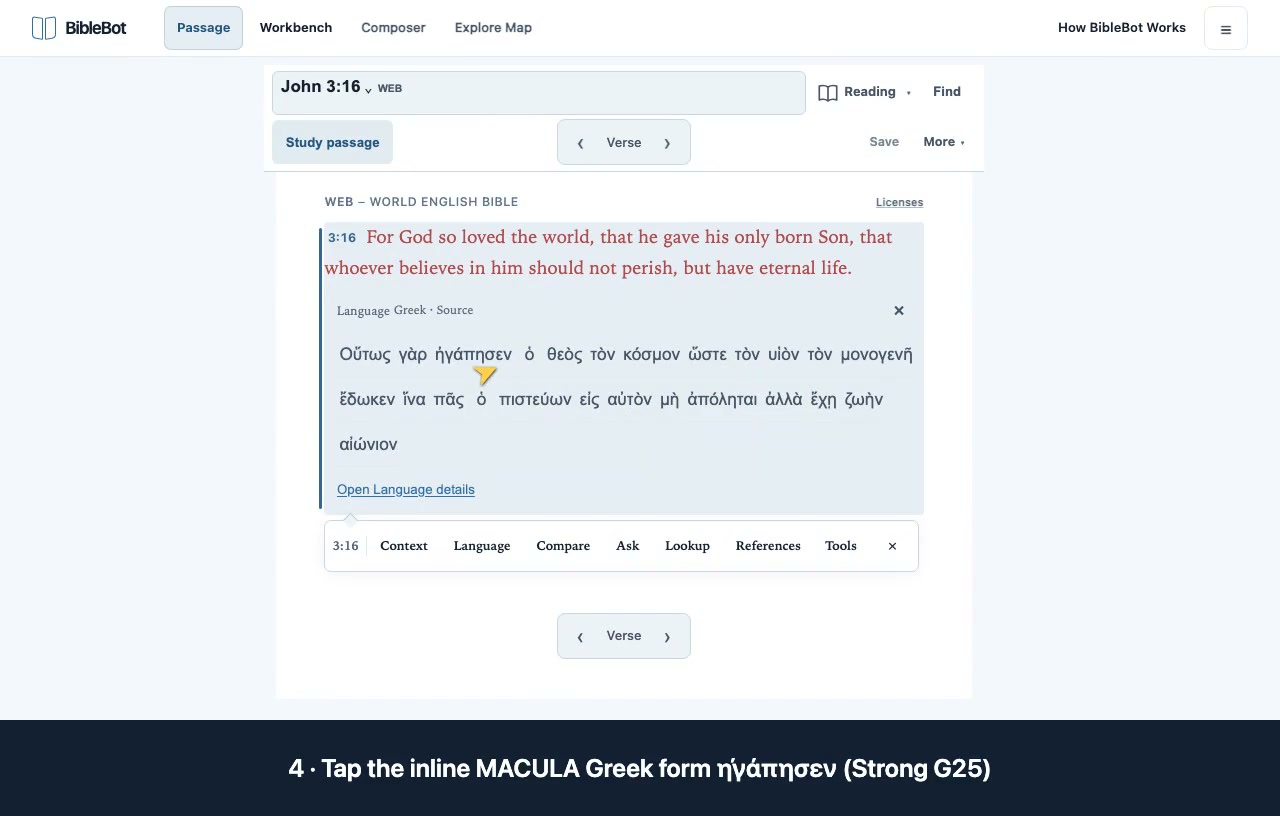
Study a Greek source word

Keep the selected form, lemma, and English reading aid distinct.

Written steps
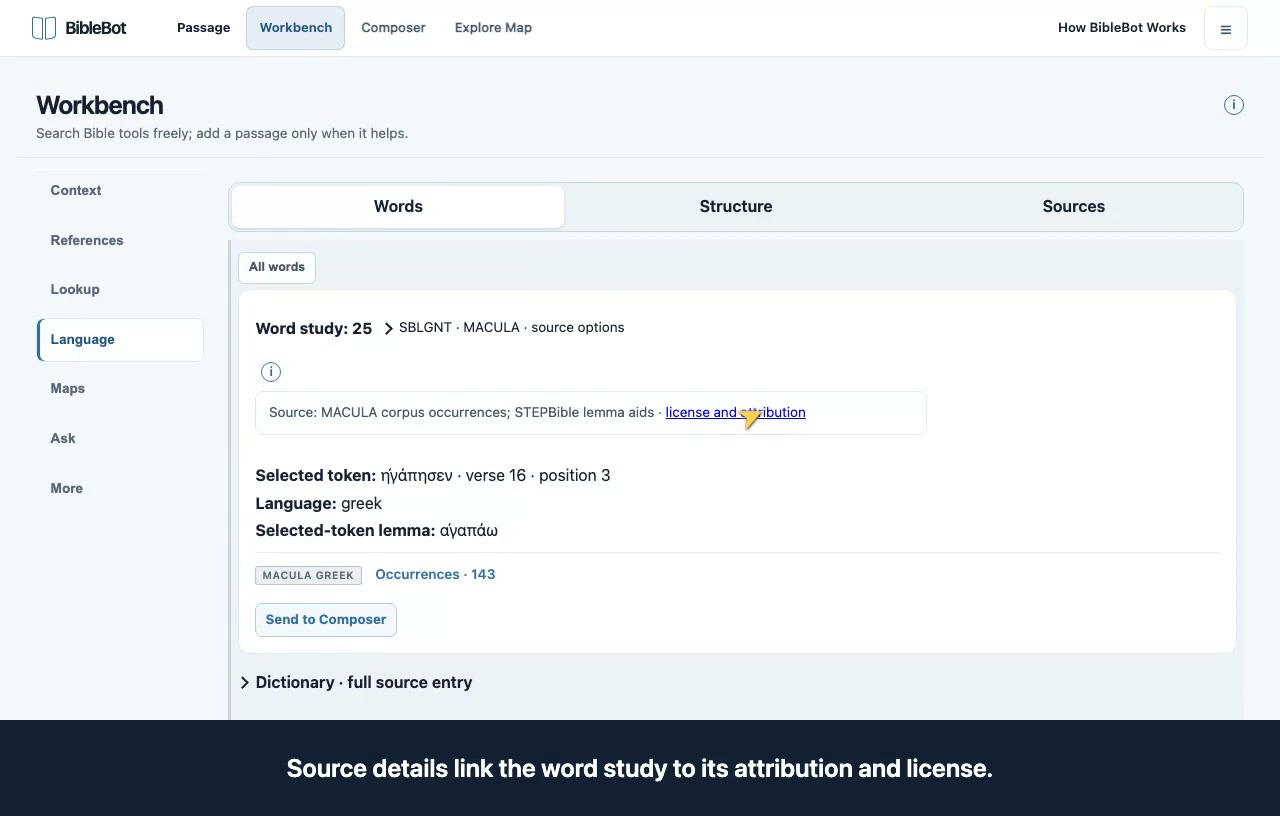
  1. Open John 3:16 in WEB and enable Inline language from Reading. Select the verse.
  2. Select the MACULA Greek form ἠγάπησεν (G25) to open its word study and compare it with the lemma ἀγαπάω.
  3. Choose Dictionary and expand the full entry to read the attributed STEP / LSJ material. The occurrence aid is not a dictionary definition.
Preview: study a greek source word

Browse word occurrences

Compare source-word occurrences across the corpus.

Written steps
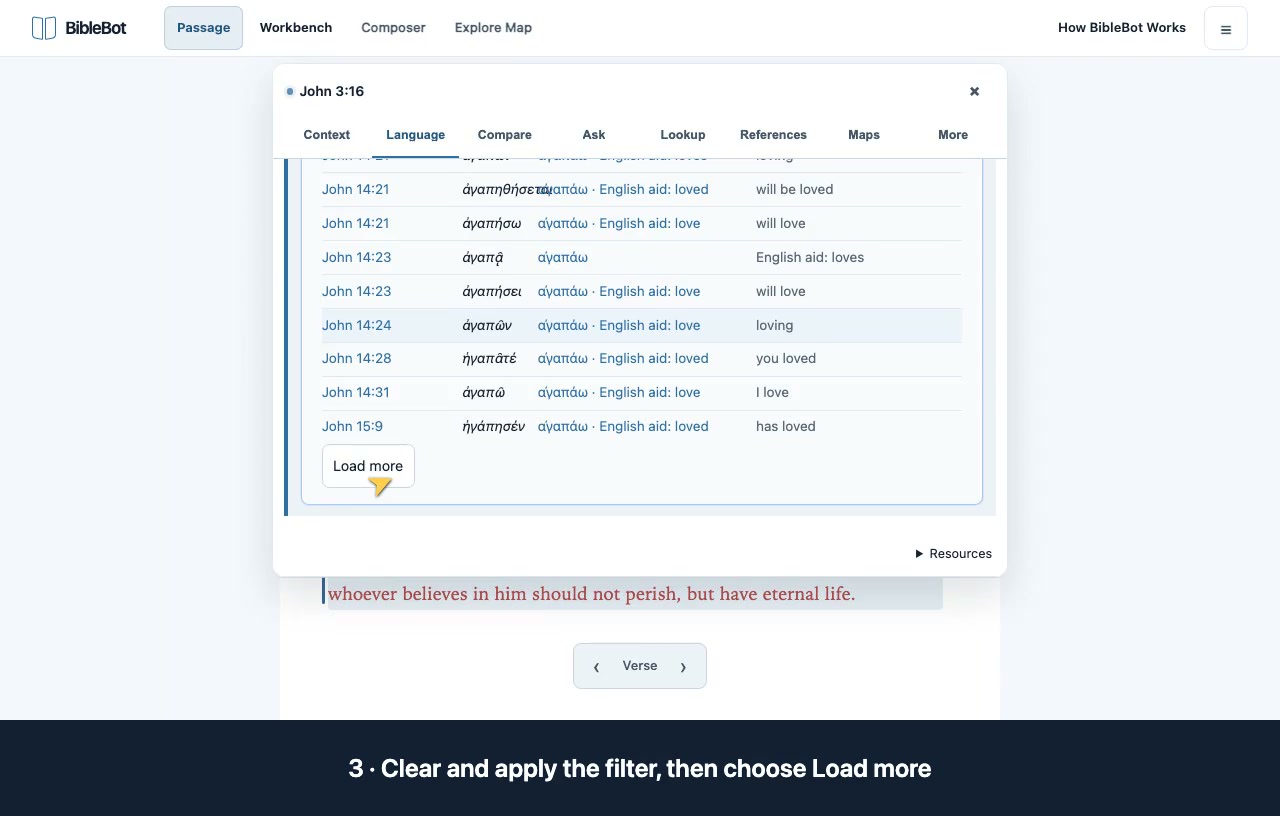
  1. Open occurrences from the G25 word study. Distinguish the loaded rows from the full matching total.
  2. Choose a book filter and apply it. Clear the filter and move to the next page when available.
  3. Open a result reference, then use Back to word study to restore the original study.
Preview: browse word occurrences

Inspect structure and source editions

Explore Hebrew and Aramaic structure without losing provenance.

Written steps
  1. Select Genesis 1:1 and open Language. Choose Structure and expand the MACULA Hebrew grouping.
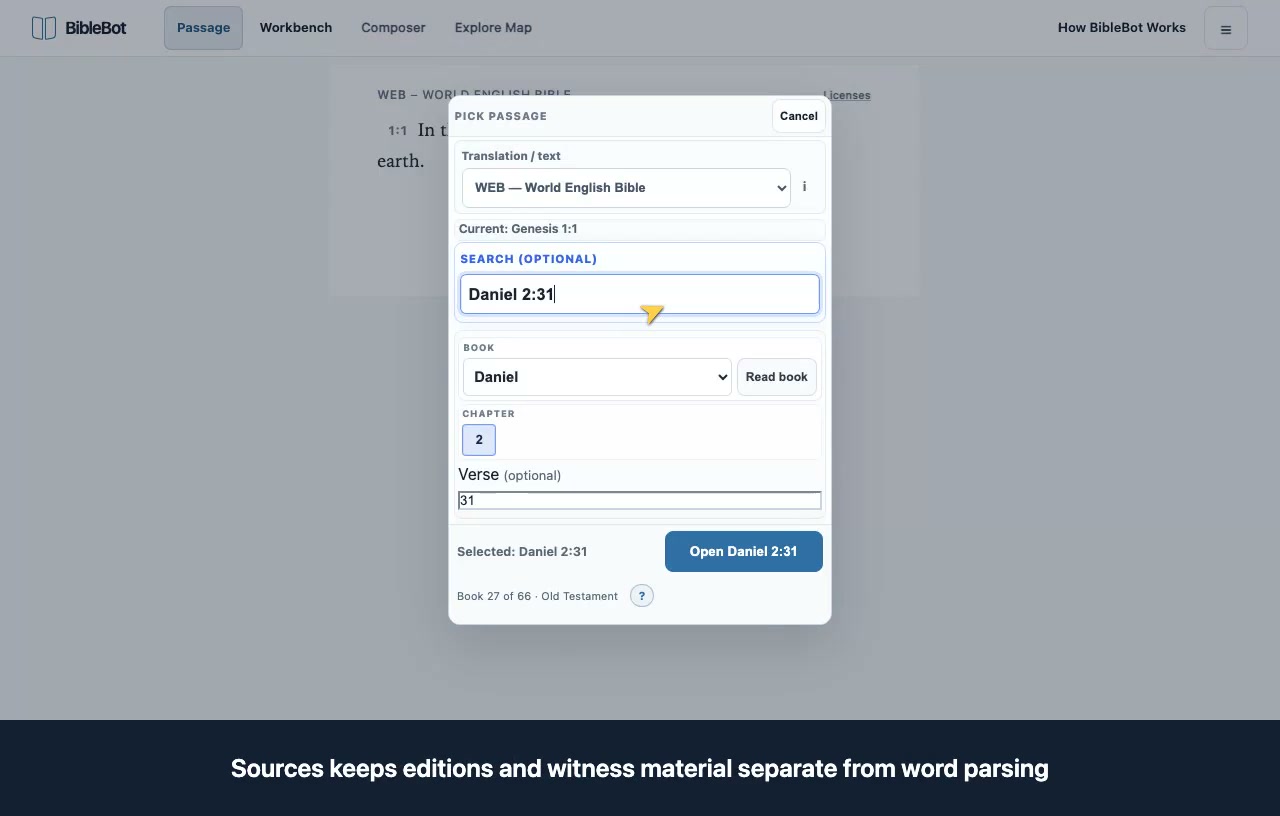
  2. Open source details for attribution. Use Sources to explore the separate edition and textual-source options.
  3. Open Daniel 2:31 and note the Aramaic (OT) label. These rows belong to the Hebrew/Aramaic Old Testament corpus.
Preview: inspect structure and source editions

Keep your work 1 videos

Keep notes, bookmarks, and collections

Choose deliberately what to save and where to keep it.

Written steps
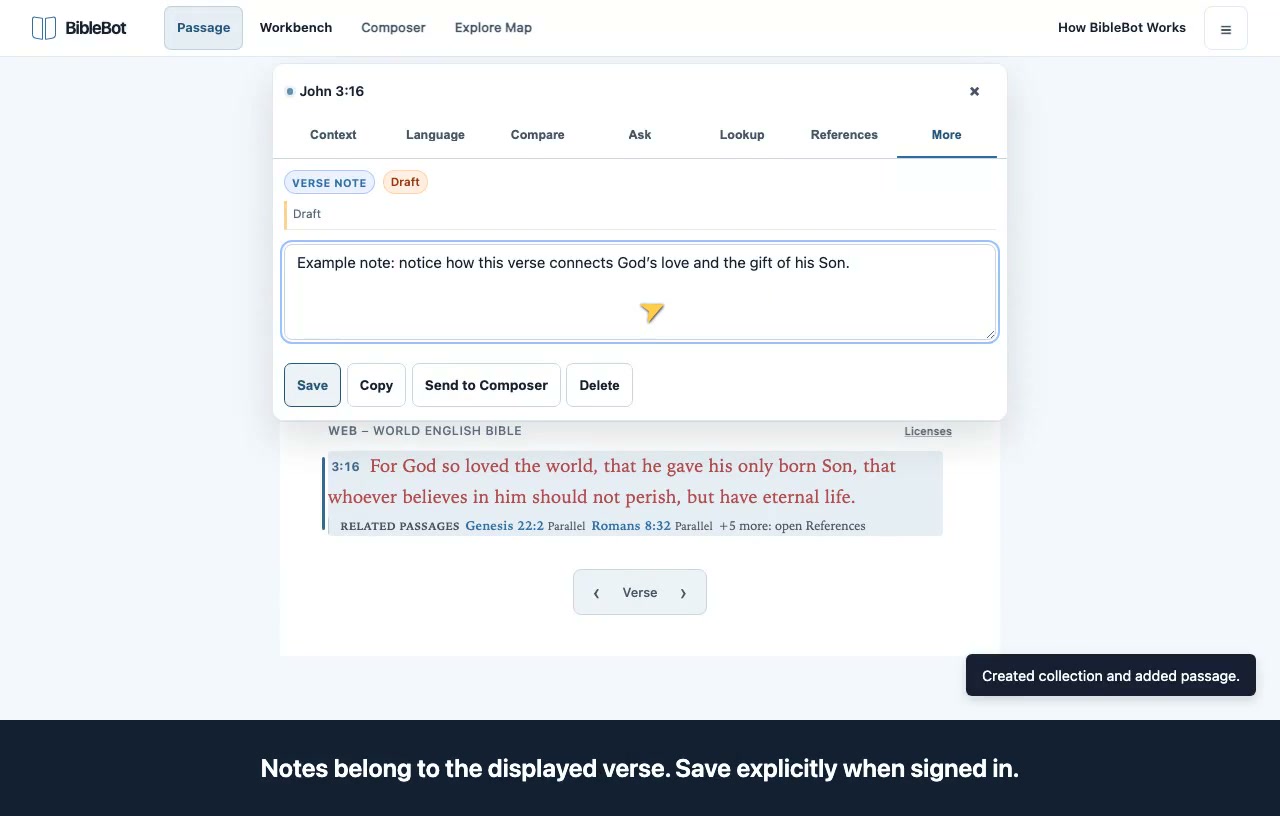
  1. Open Notes for a selected verse, write your note, and choose Save.
  2. Use the bookmark or collection actions to keep a passage for later. These are separate from the current reading selection.
  3. Use More to find the other available actions. Sending an item to Composer gathers it for review; it does not save an account draft.
Preview: keep notes, bookmarks, and collections

Workbench

Start with a question, reference, word, or place. Add a passage when the tool needs one.

Open Workbench

Start here

Start an investigation in Workbench

Choose a tool and add a passage when that task needs one.

Written steps
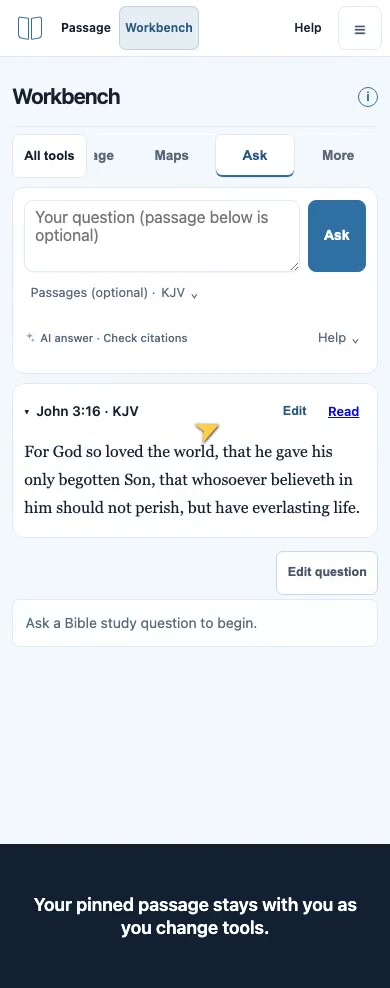
  1. Choose a tool from the rail, or All tools on a phone.
  2. Add or change the primary passage and its translation. Required passage guidance appears for passage-only tools; other searches can begin without one.
  3. Use Read in Passage to read the anchor in context. More provides workspace, link-copy, and Composer actions.
Preview: start an investigation in workbench

Investigate and compare 3 videos

Ask, inspect evidence, and keep an answer

Ask a question on its own or with up to three passages.

Written steps
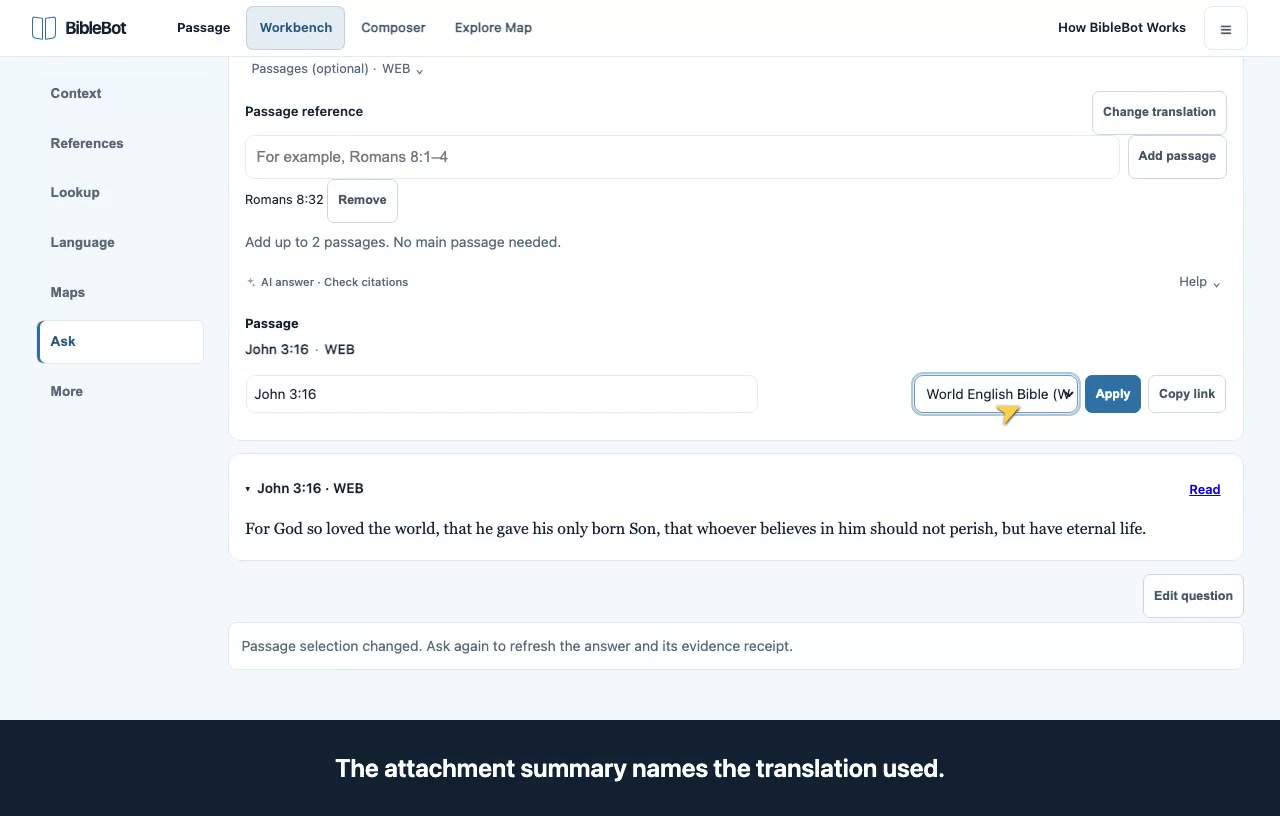
  1. Enter a question. Optionally add a primary passage and up to two additional passages with their translations.
  2. Submit the question, then inspect the cited Scripture and evidence. The walkthrough uses an example answer.
  3. Save answer, Export evidence, and Send to Composer are distinct actions; choose the one that fits your next step.
Preview: ask, inspect evidence, and keep an answer

Read a named Context source

Read the publisher’s text alongside the passage.

Written steps
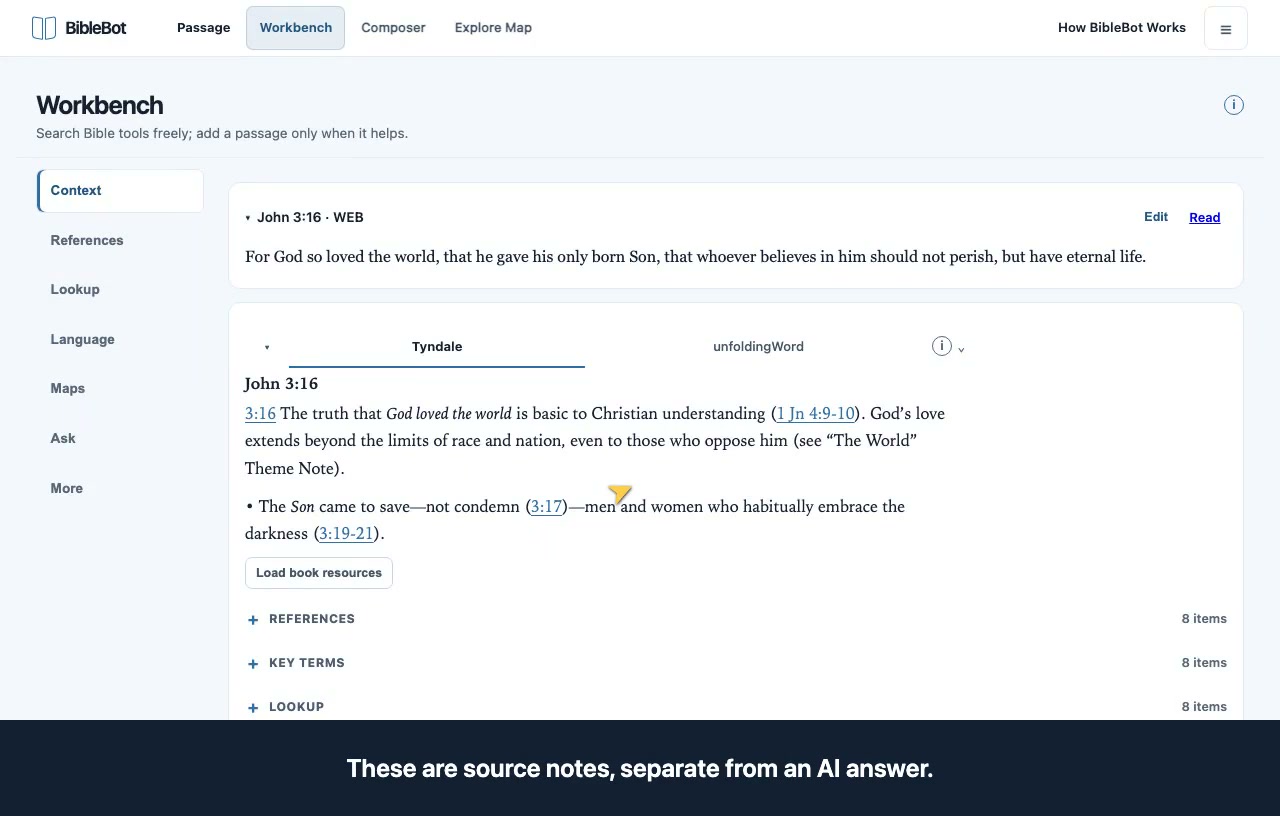
  1. Choose Context and apply John 3:16 as the primary passage.
  2. Read the Tyndale note with its source identity visible.
  3. Open source details for attribution, licensing, and translation context, then explore the related research groups.
Preview: read a named context source

Find related Scripture

Explore Scripture connections visually, or compare ranked references in List.

Written steps
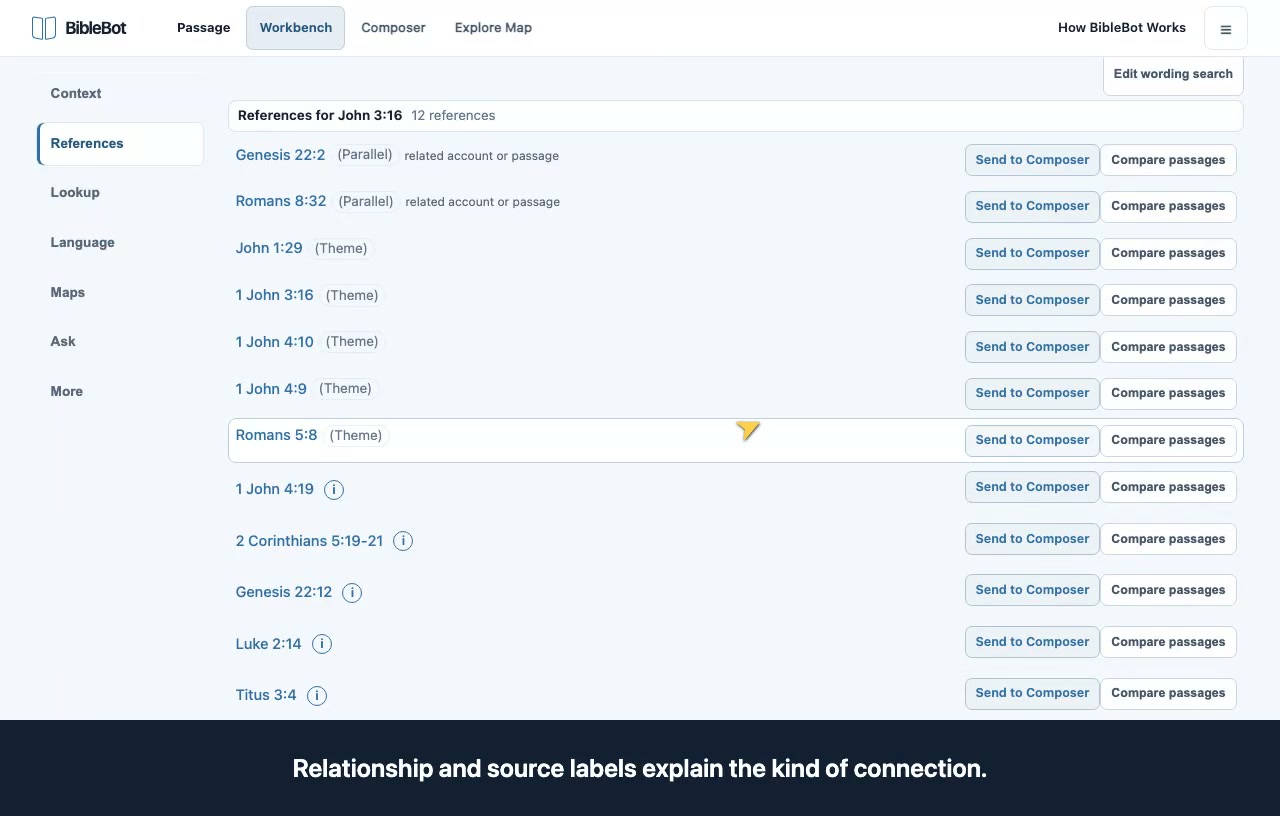
  1. Choose References to open the Visualizer. Use Passage Lens for a passage’s outgoing connections, Book Bridges for connections between two books, or Canon Atlas for the whole Bible.
  2. Choose List above the explorer to search by reference or words you remember. Load a passage, then choose Compare passages to read a related passage beside the pinned Scripture.
  3. In the Visualizer, select a connection and choose Open source in List or Open related in List to investigate that passage. The two views use different collections, so their results can differ.
Preview: find related scripture

Words, sources, and places 3 videos

Look up dictionary entries, topics, and words

Use the right source for the question you are investigating.

Written steps
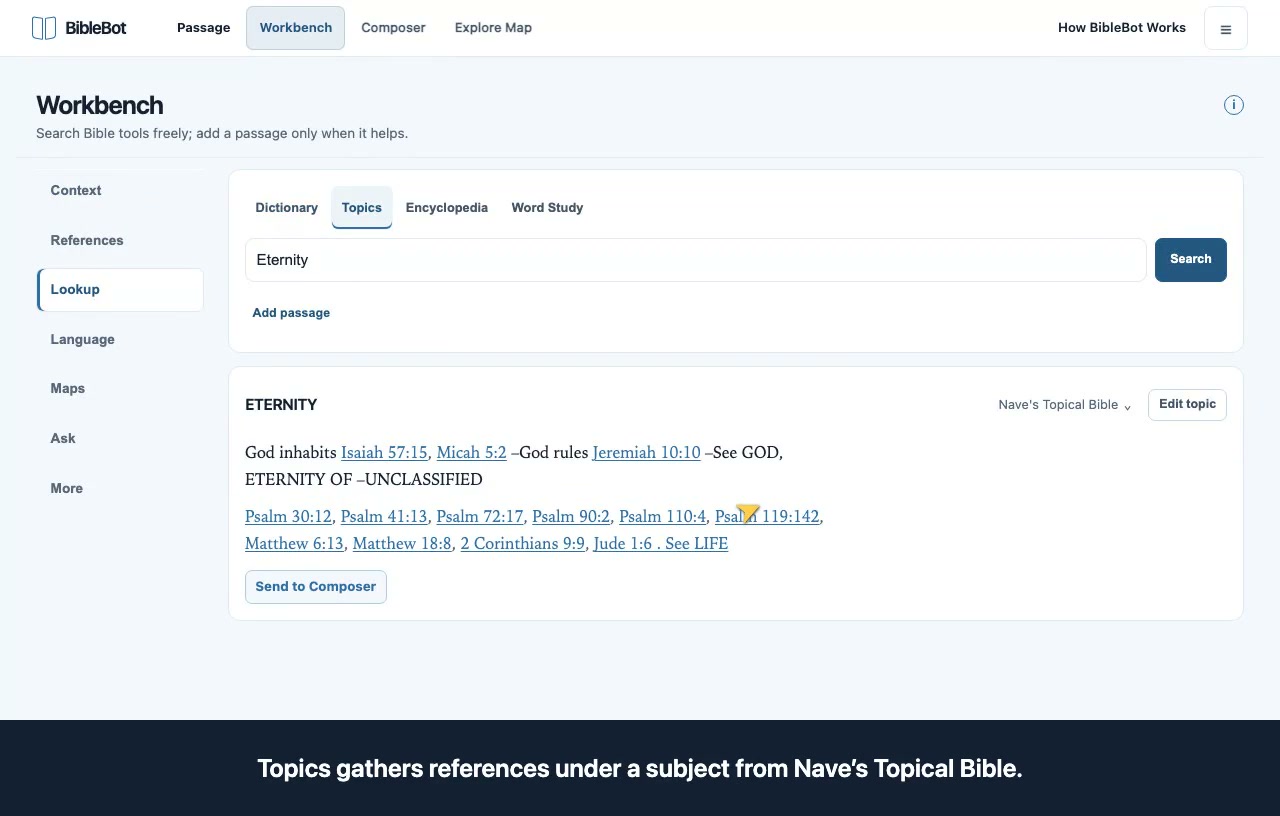
  1. Choose Dictionary, Topics, Encyclopedia, or Word Study under Lookup.
  2. Enter the term or Strong number and open a result. Change the source when alternatives are available.
  3. Read the attribution, follow cited references, and distinguish source text from study aids.
Preview: look up dictionary entries, topics, and words

Investigate source-language words

Follow a source token into word study and occurrences.

Written steps
  1. Apply a passage and choose Language. Select a source token.
  2. Read the form, gloss, and parsing with their source and mapping qualifications.
  3. Open its Strong-linked study, occurrences, and provenance. Return to the source words when finished.
Preview: investigate source-language words

Explore places, journeys, and media

Use the four Maps views with their provenance in view.

Written steps
  1. Choose Maps and explore Passage places for the current anchor.
  2. Browse the Catalog and its filters, then choose Journeys to inspect sourced stops and routes.
  3. Open available Media and read its attribution. Continue places or journeys in Explore Map when you need more room.
Preview: explore places, journeys, and media

Composer

Review what you gathered, write a draft, and explicitly save a named account copy.

Open Composer

Start here

Build a draft from gathered material

Write in your own words and keep source material organized.

Written steps
  1. Give the working draft a title and write in Main draft.
  2. Review Gathered material and its source details. Add useful items to the draft, keep them for later, or remove them.
  3. Open More for draft when you need the optional structure fields, and switch to the reading or teaching view when ready.
Preview: build a draft from gathered material

Gather and save 2 videos

Send useful material to Composer

Gather first, then decide what belongs in the draft.

Written steps
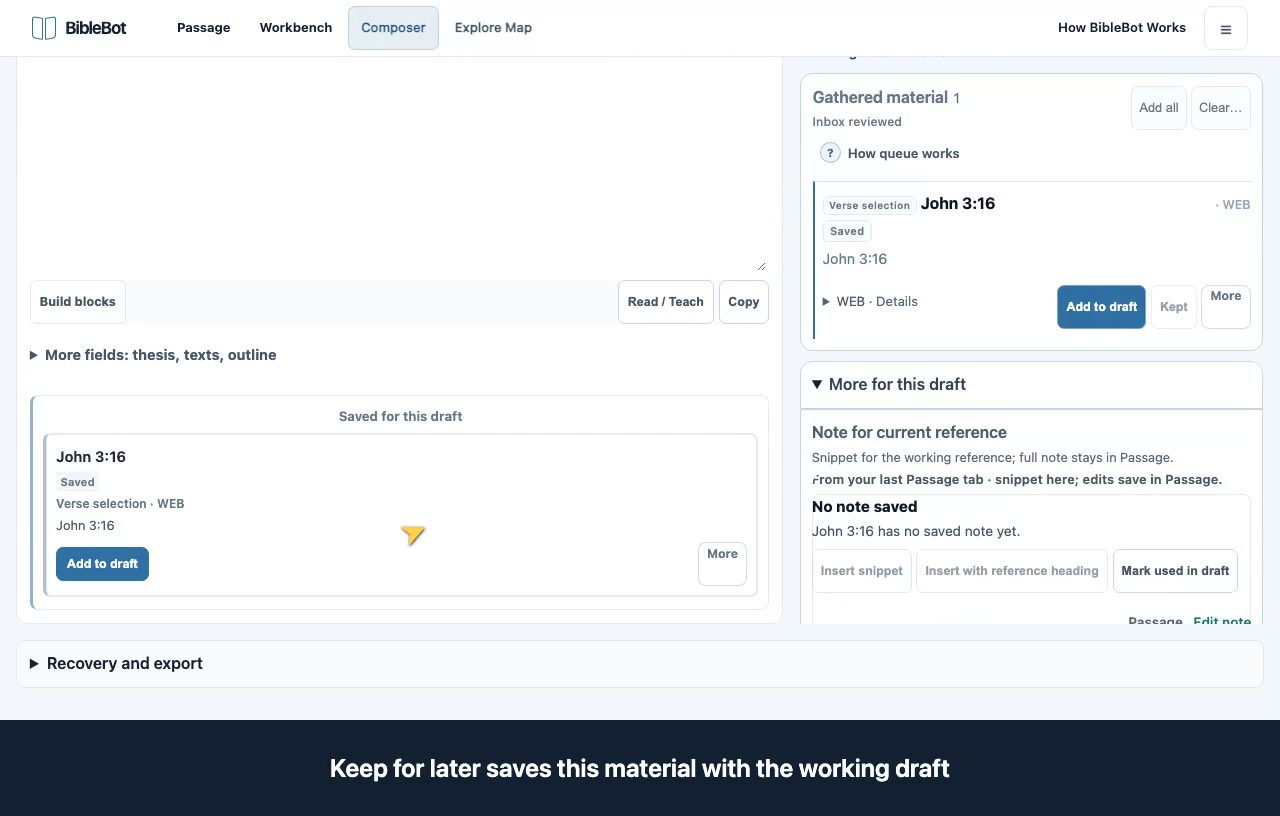
  1. Select a passage or useful item and choose Send to Composer.
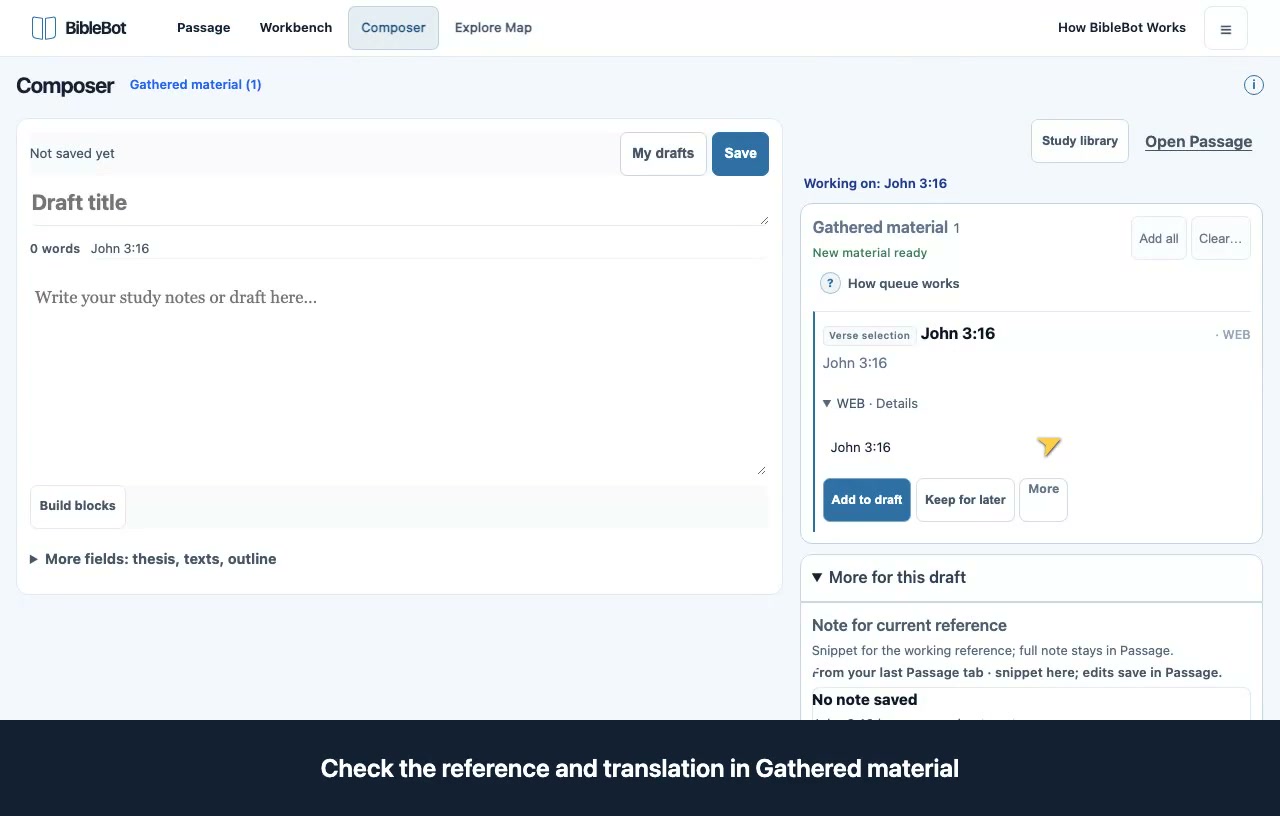
  2. Open Composer and find the item under Gathered material.
  3. Check its reference, translation, and available source details. Choose Add to draft, then review the full text in the draft. Sending and inserting material do not save an account draft.
Preview: send useful material to composer

Save and reopen a named account draft

Your working copy and a saved account draft are separate.

Written steps
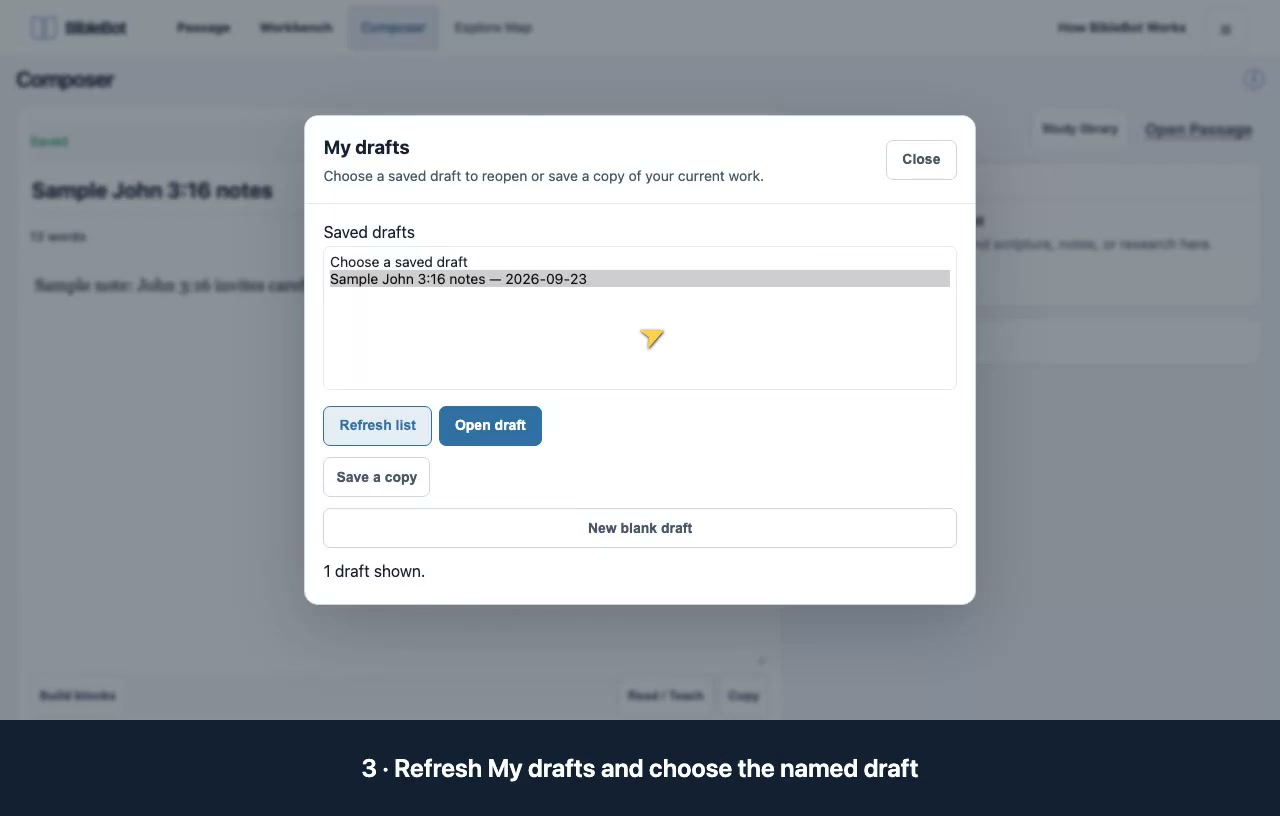
  1. Choose Save, name the account draft, and choose Save draft. Wait for Saved before leaving.
  2. Open My drafts, refresh the list, and select the named draft.
  3. Choose Open draft, review its preview, then choose Replace working draft to continue from that saved copy.
Preview: save and reopen a named account draft

Explore Map

Browse places and journeys while keeping location precision and attribution visible.

Open Explore Map

Start here

Browse the atlas and journeys

Explore places with their confidence, precision, and sources visible.

Written steps
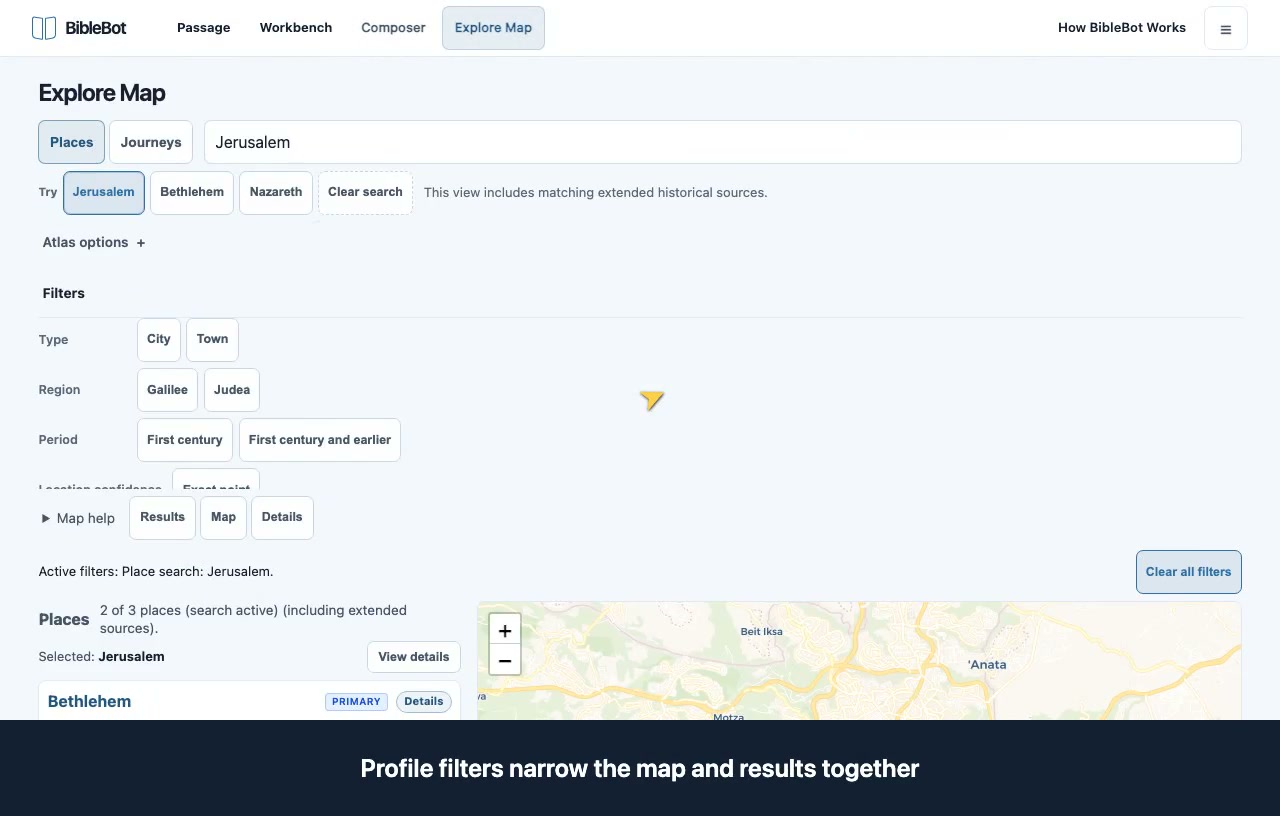
  1. Search the Places list and use the profile filters to narrow the map and results together.
  2. Select a place and read its details, precision, and attribution. Use Map or Results on a phone.
  3. Choose Journeys, select a route, and inspect its stops and passage links.
Preview: browse the atlas and journeys

Preferences

Choose your theme, reading style, and most useful actions.

Open Preferences

Start here

Choose a theme and reading preferences

Make BibleBot comfortable without changing what your tools can do.

Written steps
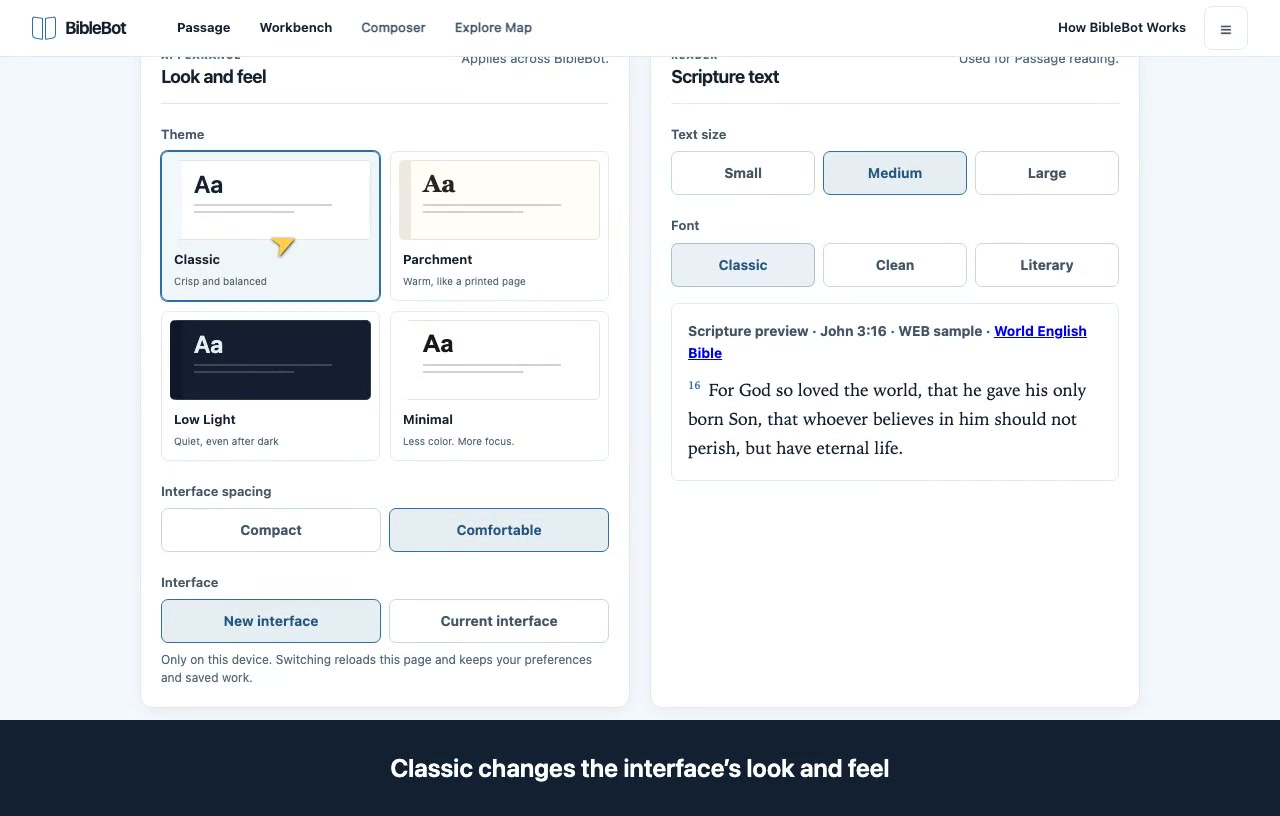
  1. Open Preferences from the site menu and choose Classic, Parchment, Low Light, or Minimal.
  2. Set reader font, text size, and interface density independently.
  3. Adjust reading defaults and the selected-verse toolbar to keep your most useful actions close. Current interface is available as a device-only fallback.
Preview: choose a theme and reading preferences